
MouseKit Standard Plus - a tool for teachers and online course prep
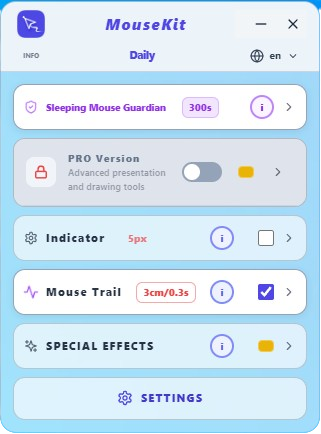
Standard Plus is the first step above the free version. It keeps everything you already know from Free Standard, Guardian, the Indicator, Colored Cursor, Pulse, the Mouse Trail, and Profiles, and on top of that unlocks the whole Special Effects section, tools that turn Standard mode into a real little toolkit for preparing presentations and online classes, without needing a pile of other programs open. 😊
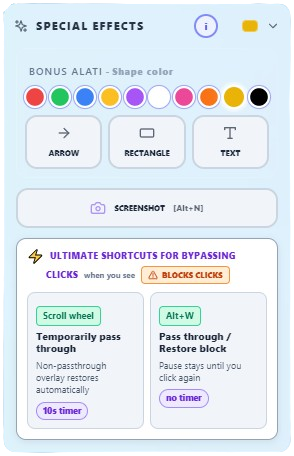
Arrow and Rectangle → highlight what matters on the slide
When you prepare a lecture or presentation in advance, sometimes it's enough to just point at what's important. The Arrow (Alt+A) directs attention to a specific element on screen, and the Rectangle (Alt+S) frames a detail on the slide that shouldn't be missed. For both, you also choose the color they're drawn in, so they fit your presentation.
Text on screen → add an explanation on the fly
With the Text tool (Alt+T) you type a short explanation exactly where you need it, without opening another app. Click where you want the text, type it, press Enter, and you're done, the text stays right where your audience will most easily connect it with what you're talking about.
The "BLOCKS CLICKS" message appears in the panel's header, or in the corner of the screen if the panel is minimized, whenever you're using a feature that needs to run on an impermeable overlay canvas. The previous three features, which let you prepare online presentations and lectures in advance, are exactly that type... but we have a solution for that too, just below 😉
Screenshot → capture a moment without extra tools
When you're preparing material for a course, you often just need one screenshot, so you don't need a separate app for that either, since MouseKit already has everything you need. The Alt+N shortcut turns your cursor into a crosshair, you mark a rectangular part of the screen, and the screenshot lands straight in your clipboard, ready to paste into a presentation or document.
Spotlight → attention exactly where you're pointing
Spotlight (Alt+L) dims the whole screen except for a circle around your cursor, so your audience's eyes go exactly where you're currently pointing, perfect when a slide has a lot of content and you want to highlight just one part. You can change the circle's size on the fly, while the effect is already on, with a slider or Shift + mouse wheel (easiest and fastest), which isn't possible in many other apps with a similar effect. How dark the area around the circle gets is set with a separate slider. An important difference from the other Special Effects: Spotlight doesn't block clicks underneath, so you can keep working on screen while it's on.
Ultimate Shortcut → briefly "pass through" a click, without turning anything off
That's the genius solution... When the Indicator, Colored Cursor, or one of the Special Effects is active, your click doesn't pass through to the apps underneath, because these on-screen effects can only be achieved on an impermeable overlay canvas, which by its nature doesn't let the click pass through. When you still need to quickly click something underneath, a click on the mouse wheel lets you do that automatically for 10 seconds (with a green "PASSES CLICKS" message with a countdown). Alt+W does the same thing, but you use it when you need a bit more time for clicks to pass through the overlay: the first press of this shortcut lets clicks pass through the canvas, with a green notice on the panel or in the corner of the screen if the panel is minimized, and pressing the same shortcut again brings back the impermeable overlay and every feature that was running on it, so you can continue with what you were doing.
All of this makes Standard Plus a great choice for teachers and presenters who prepare online courses and material in advance, while for "live" presentations, where you also need real-time interaction, the PRO version is even better suited and built to go a step further. Learn more about PRO → MouseKit PRO - a professional tool for teachers and presenters
If you want to dig deeper into the app and follow what happens next, check out:
- mousekit.app - our commercial site, with all plans and pricing, panel screenshots, and the full demo video
- youtube.com/@mousekitapp - our YouTube channel with demo videos and the app's tongue-in-cheek anthem, Holy Mouse 😂
- docs.mousekit.app - our user guide (page in progress, already-finished sections are live while we complete the rest)
- linkedin.com/in/srdjan-pavlovic-a4492a385 - the founder's LinkedIn profile
- x.com/SrkiMouseKit - follow us there too