MouseKit Free Standard - a free tool for a safer, more visible cursor
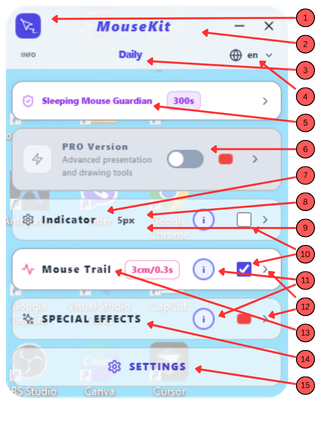
Free Standard is the entry point, forever free version of MouseKit. It contains several useful features that mostly help you track and see your cursor better on screen, but it also has two "secret weapons" that take this basic version further 😉
The Panel has two main screens, Standard mode and Settings, but that doesn't mean the rest is hidden. You can see the PRO and Special Effects sections in the Free Standard version too, just grayed out. That's intentional, so you know right away what's waiting for you if you move up to a stronger version.
Guardian for the sleeping mouse → always active
This is the first "secret weapon," since it protects you from a wrong click. If you know, from the technical specs, when your mouse goes into sleep mode to save power, set the slider to exactly that time (10 to 600 seconds). If you don't know, just estimate it, because the cursor then starts to pulse and shows you its position when you come back from a break, so you don't accidentally click on the wrong spot while trying to wake it from its "nap."
This feature effectively solves two everyday situations:
- an accidental click after a break, when the mouse wakes from sleep mode, since the pulse shows you the cursor's exact position,
- finding the cursor on a large or multi-monitor screen when you simply lose sight of it. The Alt+G shortcut lets you trigger the Guardian's pulse manually at any time, so you don't waste time or patience hunting for where it went 🙂
Guardian isn't the same as Pulse, which we cover in the next section. Guardian is about safety, Pulse is about visibility. They work together, but they're different features.
Indicator, colored cursor and pulse → so your cursor never lets you down
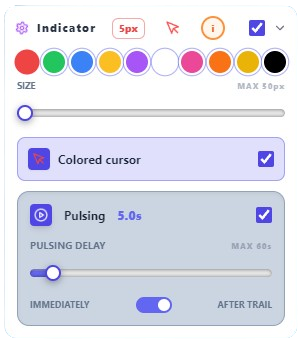
The Indicator replaces the standard Windows cursor with a ball whose color and size you choose, for better visibility... useful when presenting, recording, or simply working on a large screen. The Colored Cursor, for the same purpose, replaces the standard Windows cursor with the color you pick for the Indicator. Both have their own shortcut (Alt+B, Alt+F) so you can turn them on or off while the Panel is minimized.
Pulse builds on both: when the mouse stops, the cursor gently pulses, so your audience (or you) doesn't lose focus while you're talking or thinking without moving the mouse. You set the time before pulsing starts with a slider (1 to 60 seconds)... shorter for dynamic presentations, longer for everyday work so it doesn't distract you.
Mouse Trail → a visible cursor path
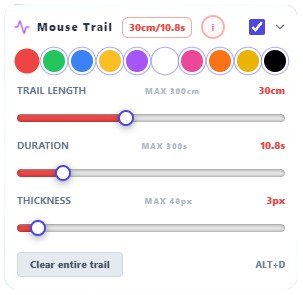
The Trail leaves a line behind your cursor as you move across the screen, with full control over its length (up to 300cm), duration (up to 300 seconds) and thickness. It's useful when you want your audience to follow exactly where your mouse goes, but it's good for something else too... you can use it as a visual way of thinking, "doodling" on screen instead of on paper, while you work through a solution or a strategy. The Trail can be cleared instantly (Alt+D), paused (Alt+R), or have only its last part erased (Alt+Z, a bonus shortcut from the PRO version), but only if it was previously interrupted with the Alt+R shortcut. This is the second "secret weapon," since, together with Pulse, it even lets you prepare online presentations and courses, even though, unlike its older siblings Standard Plus and PRO, it isn't really built for that 🙂
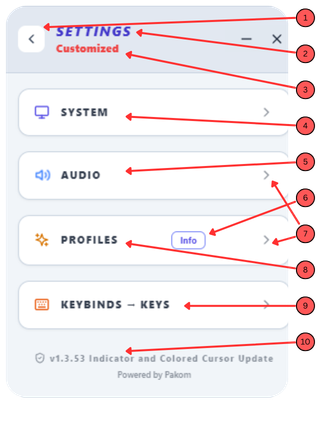
Profiles → your preferred setup in one click
Instead of manually adjusting every parameter from scratch each time, four ready-made profiles (Guardian, Everyday, Gaming, and your own custom My Profile 1) store a complete combination of pre-set parameters and activate it with a single click. Everyday, for example, is set up for quiet, unobtrusive cursor tracking during regular work, while Gaming is tuned for faster movement with a somewhat different trail behavior.
On top of that, Settings gives you control over autostart (so Guardian is running the moment you turn on your computer), the panel's dark mode, sound effects, and your own shortcut combinations... everything you need to make MouseKit fit your way of working, without spending a single cent. There's also a Support section, for faster, better communication with us if the app ever decides not to cooperate 😉
If you want to dig deeper into the app early and follow the finishing touches through to launch, check out:
- mousekit.app - our commercial site, with more details, panel screenshots, and a full demo video showing almost the entire app in action
- youtube.com/@mousekitapp - our YouTube channel with demo videos and the app's tongue-in-cheek anthem, Holy Mouse 😂
- docs.mousekit.app - our user guide (page in progress, already-finished sections are live while we complete the rest)
- linkedin.com/in/srdjan-pavlovic-a4492a385 - the founder's LinkedIn profile
- x.com/SrkiMouseKit - follow us there too